The Idealpos 10 Framework adds an option to install SQL Server 2025 Express on 64-bit Operating Systems.
This version of SQL Server Express can be selected during a clean installation of the Idealpos Framework (when no previous installation of Idealpos exists on the PC).
If SQL Server 2025 Express is required for an existing installation of Idealpos, it will need to be manually upgraded.
This topic outlines the process on how to upgrade a previous version of SQL Server Express to SQL Server 2025 Express.
If required, refer to Idealpos or your Reseller for further assistance.
Notes and Warnings before commencing the SQL Server Express upgrade!
To commence the upgrade process, click on the following link and download SQL Server 2025 Express.
https://www.microsoft.com/en-au/sql-server/sql-server-downloads
A file called "SQL2025-SSEI-Expr.exe" will be downloaded.
Ensure that Idealpos is not running on the system currently being upgraded.
Use IPSUtility to perform a Close Suite (go to Start > Idealpos > IPSUtils > Press the "Close" button and confirm).
Run the downloaded file "SQL2025-SSEI-Expr.exe".
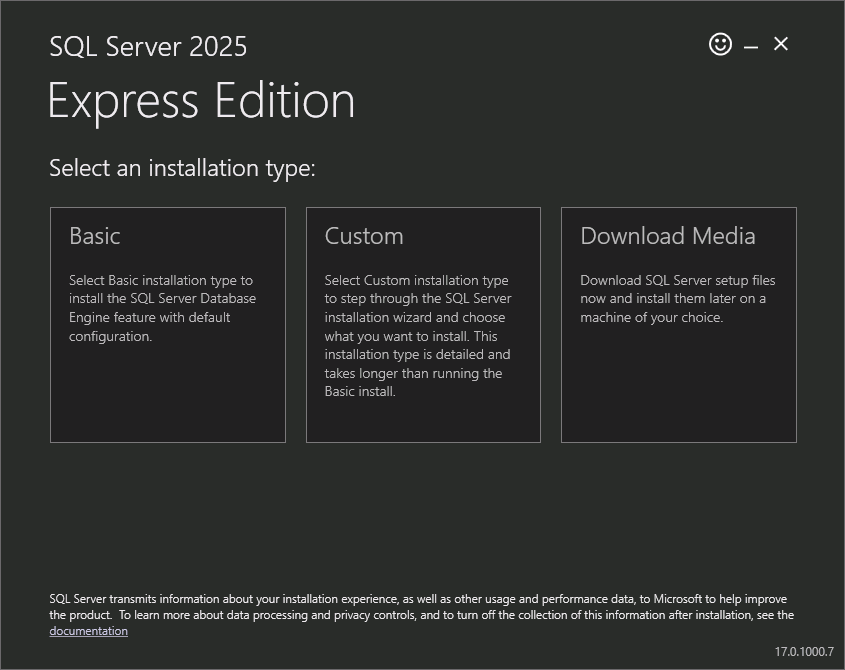
Select an installation type:
Select the "Custom" option.
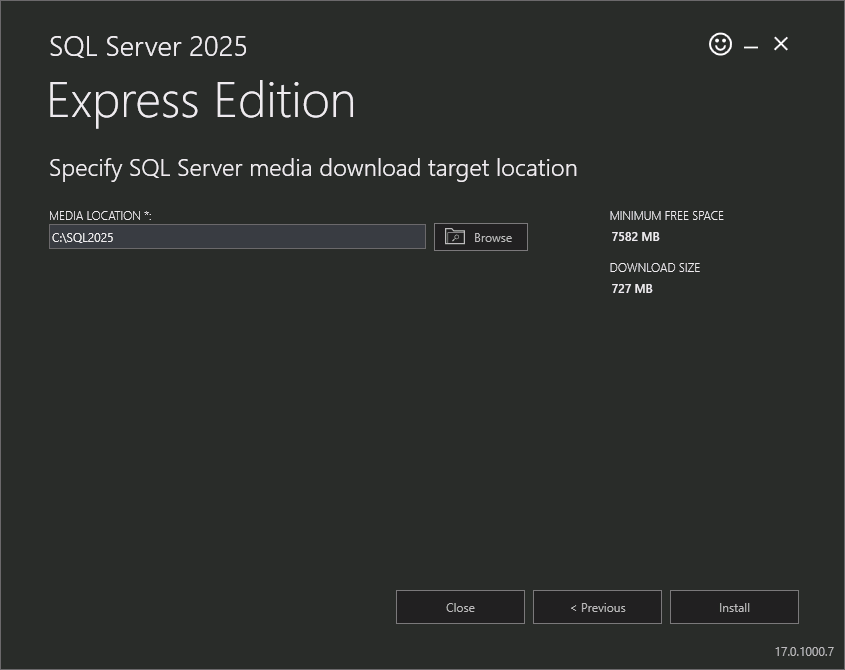
The SQL Server media download target location can be left as the default option C:\SQL2025.
Press the "Install" button to continue.
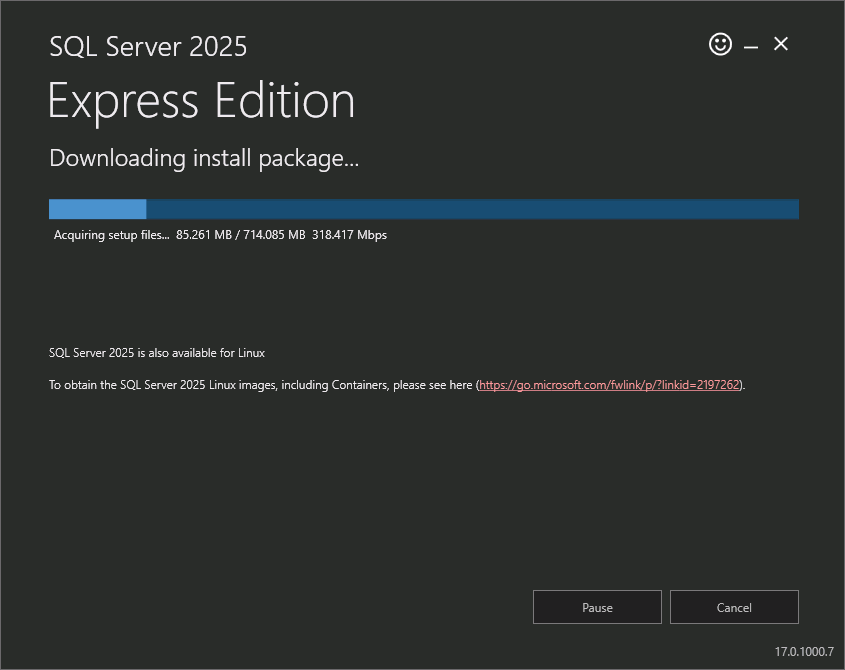
The SQL Server 2025 Express installation will download the required components.
Once the install package has been downloaded, the SQL Server Installation Centre window will be displayed.
Select the last option "Upgrade from a previous version of SQL Server".
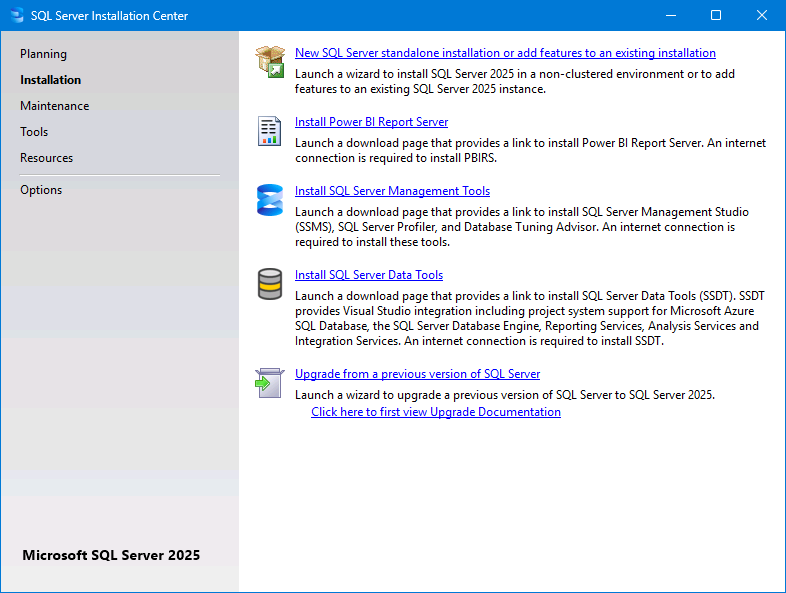
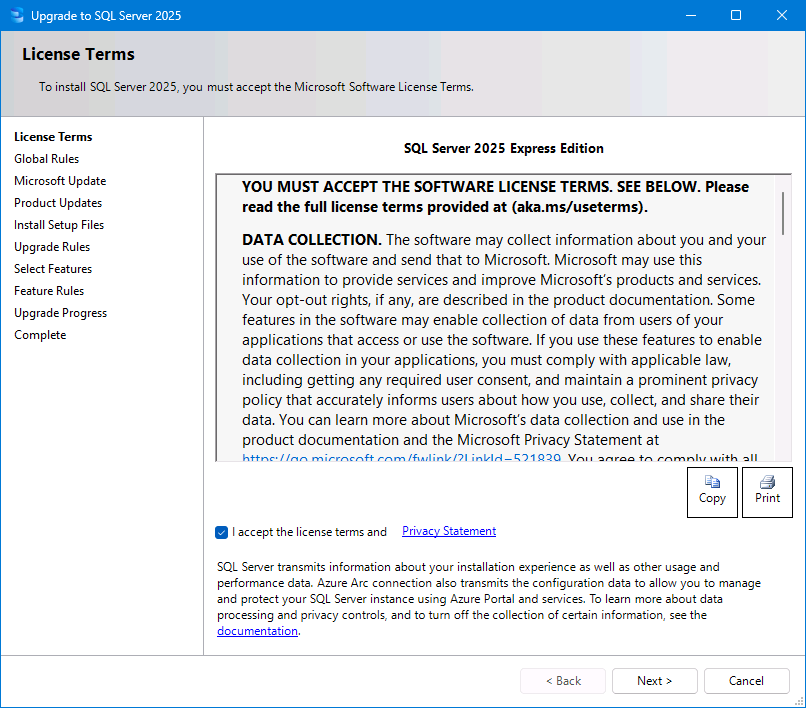
Accept the license terms and Privacy Statement > Press "Next >".
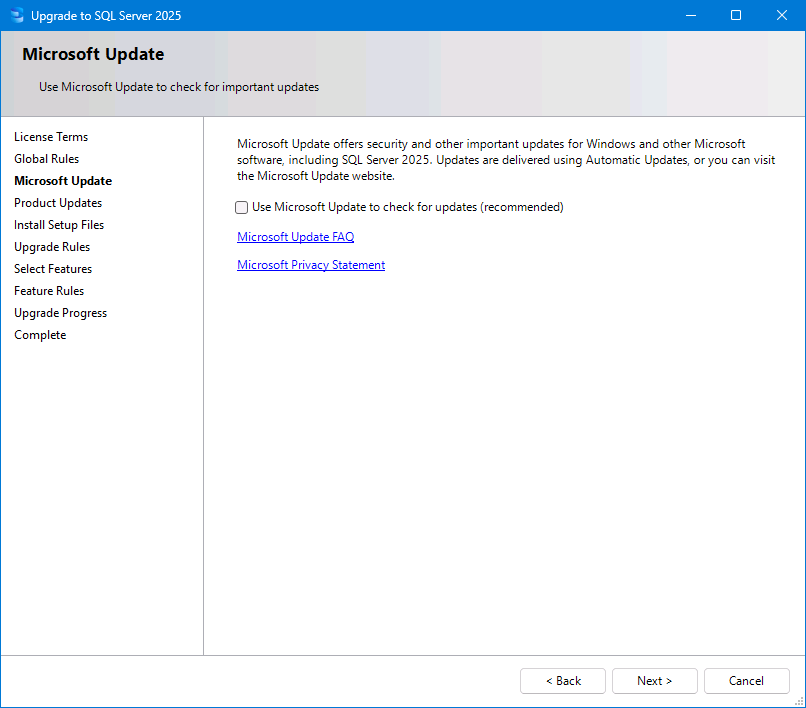
If required, enable the "Use Microsoft Update to check for updates (recommended)" option then press "Next >" to continue.
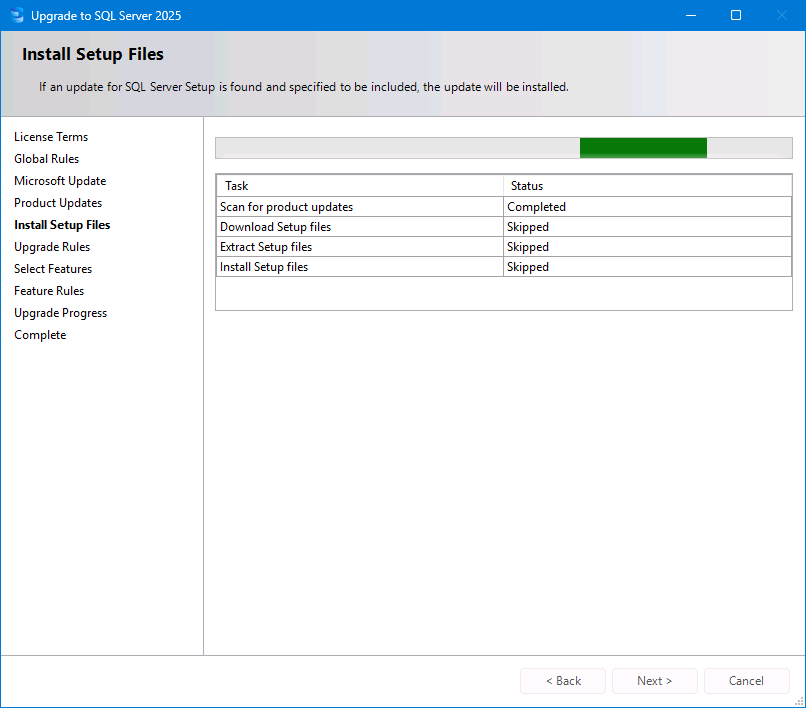
The installation will Scan for product updates/Download Setup files/Extract Setup files/Install Setup files.
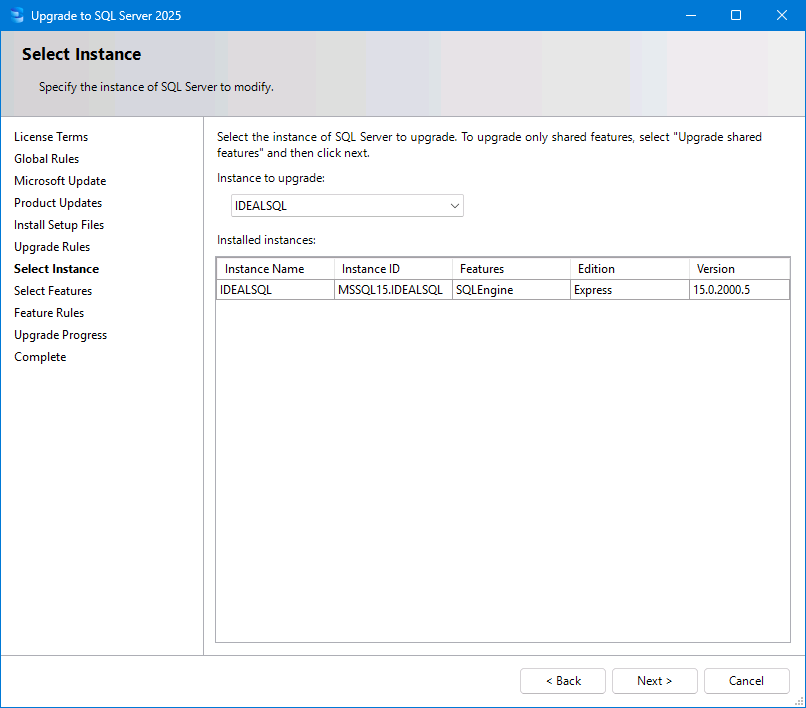
The next step should automatically select the IDEALSQL instance to upgrade.
If there are other SQL instances on the PC, ensure that the Idealpos instance is selected (typically IDEALSQL).
After selecting the IDEALSQL instance, press the "Next >" button.
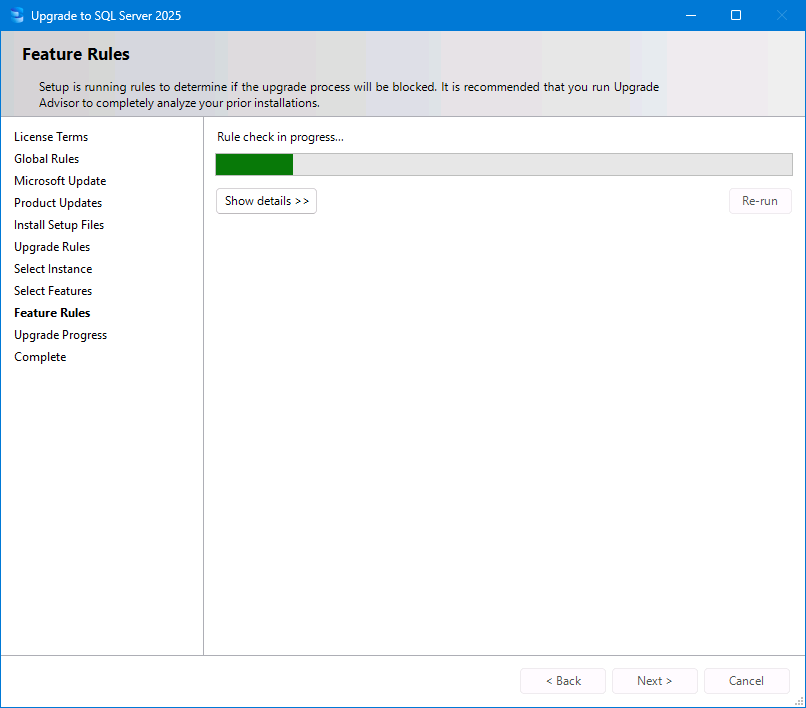
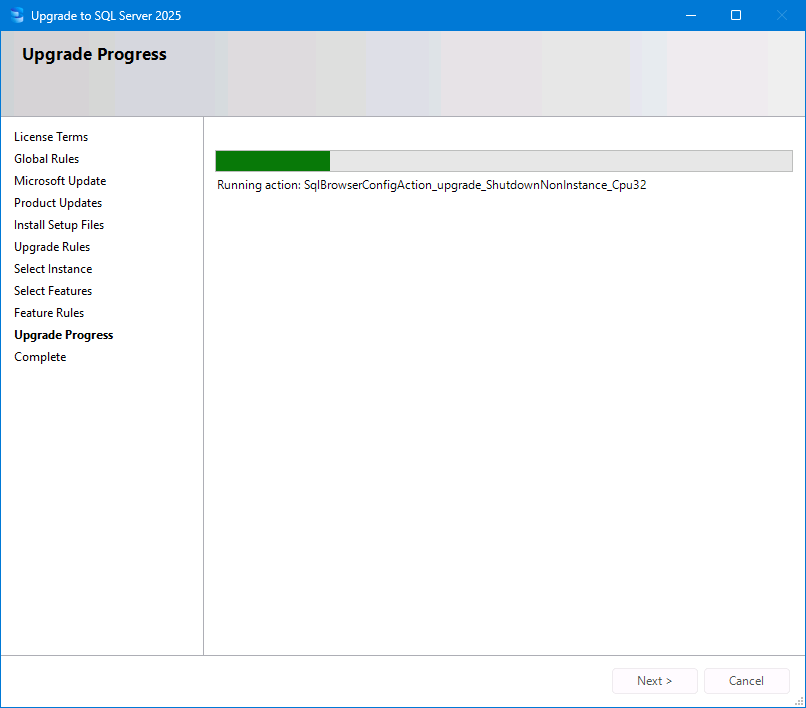
The SQL Server 2025 Express Upgrade will perform a Rule check, and will then show the Upgrade Progress while the SQL Server instance is upgraded.
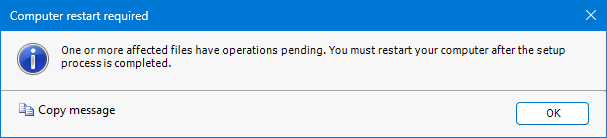
After the upgrade has been completed, the following prompt may appear > Press "OK" to close the prompt.
One or more affected files have operations pending. You must restart your computer after the setup process is completed.
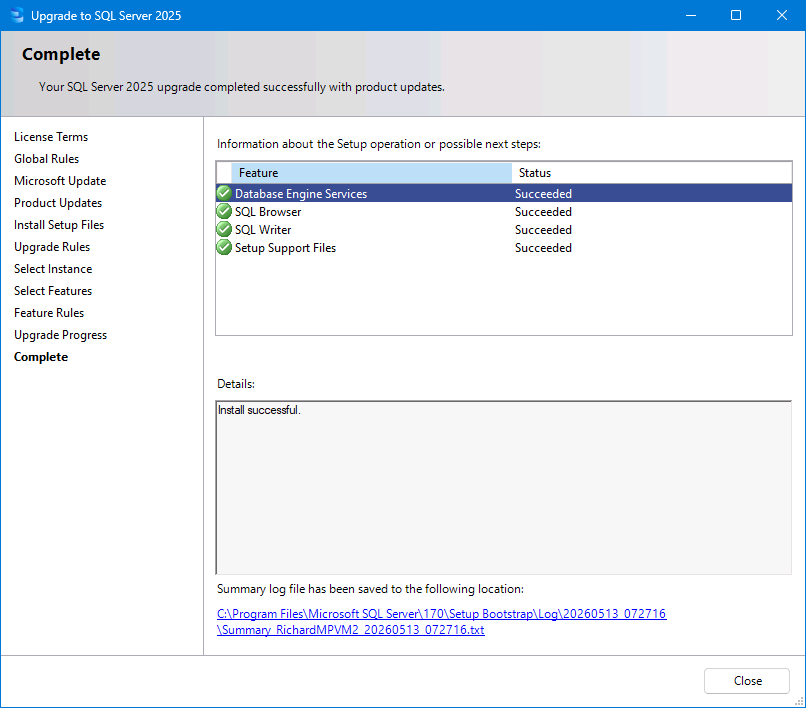
The SQL Server 2025 Express installation will display a "Complete" prompt to indicate that the process has been completed and the steps have succeeded.
If any problems are encountered during the upgrade, they will be displayed.
Press the "Close" button.
Close the SQL Server Installation Centre window.
If a prompt to restart your computer was displayed during the upgrade (as shown in the above steps), restart the PC.
After the PC has been restarted, Idealpos will start automatically.
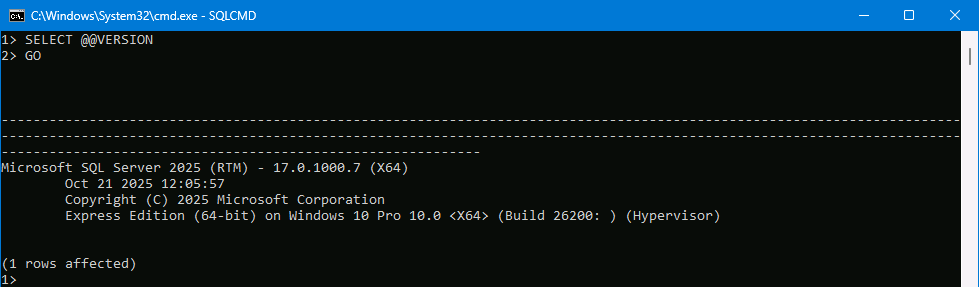
To confirm that SQL Server has been upgraded, go to: Start > Idealpos > IPSUtils > Advanced > SqlCmd Line
Enter the following commands in the SQLCmd Line window (ensuring that ENTER is pressed after each line shown below):
SELECT @@VERSION
GO
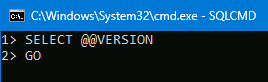
The SQLCmd window will show the version of SQL Server installed: